Customizing Your Search Fields
The Schema Builder tells the search engine exactly what information to prioritize and look through when a visitor types a query.
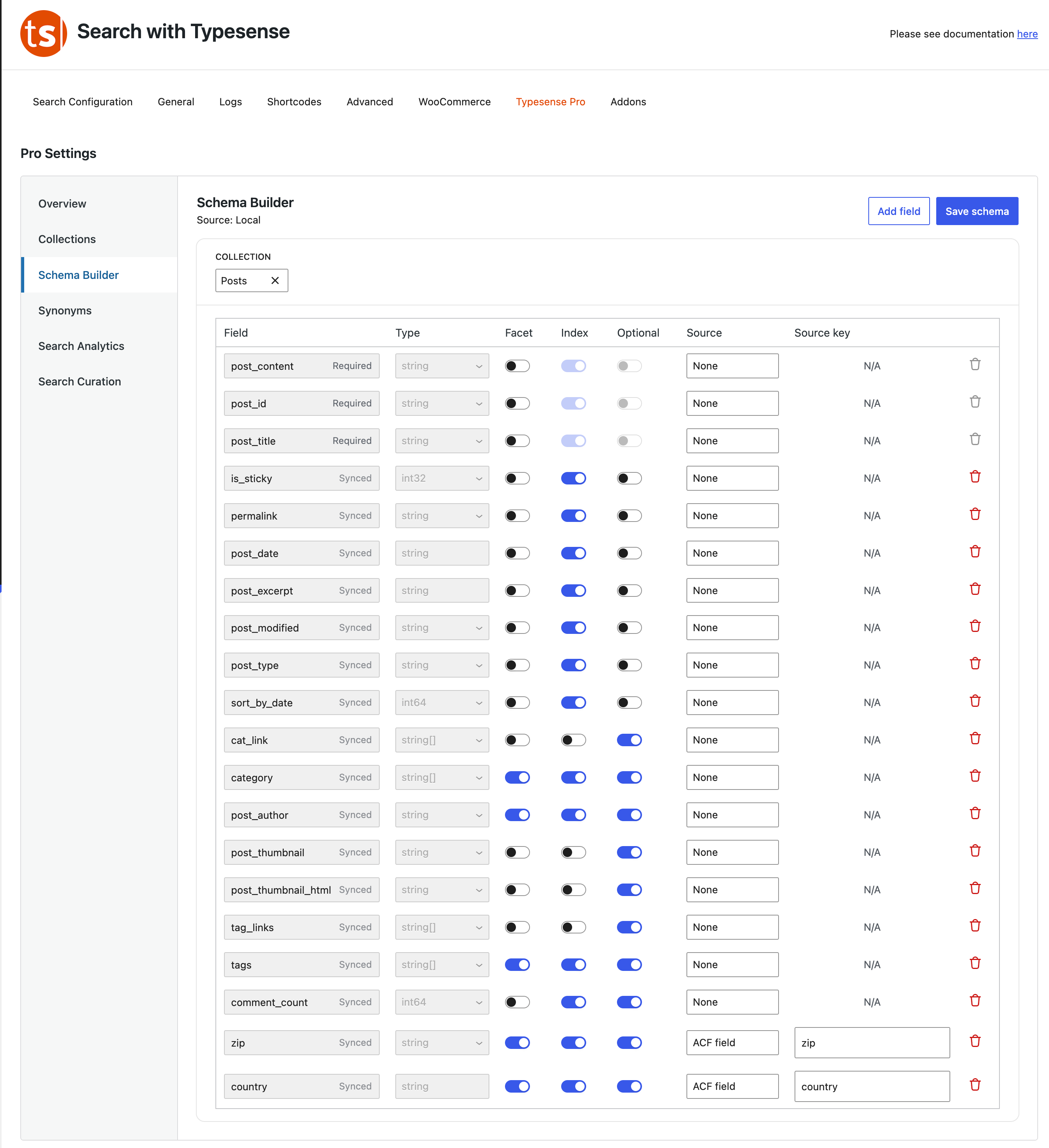
Understanding Your Search Fields Dashboard
Each row represents a specific piece of information attached to your content (like the title, date, or a category label).
- Required Fields: These are crucial pieces of data (like the text content or title) that the system must have to show a result.
- Synced Fields: These are standard details automatically pulled directly from WordPress to keep setups effortless.
- The Facet Switch: Turn this on if you want users to be able to filter their search results by this field (for example, filtering products by a specific category sidebar).
- The Index Switch: If this is turned off, the search engine will ignore the words inside this field entirely when looking up results.
- Adding Custom Details: Click Add Field at the top to create a custom data row, assign where it pulls data from via the Source dropdown, and click Save Schema when finished.
- Source can be:
- Post Fields : Post Title, Post Content, Post Excerpt, Post Date, Menu Order, Author ID
- Post Meta : This is useful to get fields with meta-data custom or otherwise that you have added.
- Taxonomy : Select any Taxonomy associated with a Post Type - use String[] for facets
- ACF Field: Requires ACF to be enabled – allows you to get data from ACF Fields
- Term Field: (For Taxonomies) : Name, Slug, Description, Count
- Term Field: Similar to Post Meta you can specify term meta fields
"Important Step After Saving" Whenever you alter settings or add fields here, your data needs to be compiled fresh. Be sure to head over to the main Search Configuration tab to run a re-index so the changes show up live on your website!
Schema
While the interface is designed to make it easier for users. A basic understanding of how typesense schema works will be beneficial – please see the official docs